Last Updated - June 15, 2025 07:53 am IST | Dhiraj Singh
Introduction
Encountering a “missing DLL file” error on Windows can be frustrating. These errors prevent applications from running properly and often confuse users about how to fix them. DLL (Dynamic Link Library) files contain essential code and instructions that multiple programs rely on to function correctly. Applications may crash or fail to start if a DLL file is missing or corrupted.
In this guide, we’ll explain why these errors occur and provide step-by-step methods to fix them efficiently. Whether you’re facing this issue on Windows 10 or 11, these solutions should help restore functionality to your system.
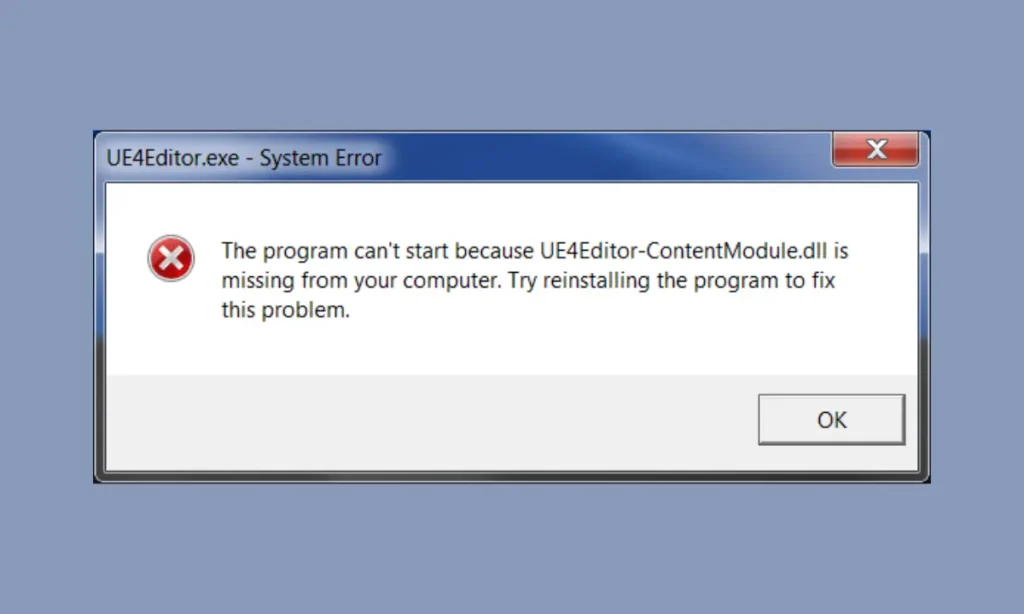
Table of Contents
What Causes Missing DLL File Errors?
Missing DLL errors usually occur due to:
- Accidental Deletion – The DLL file may have been removed during a software uninstall or system cleanup.
- Corrupt System Files – Windows system files can become corrupted due to crashes, malware, or hardware issues.
- Incomplete Software Installation – Some programs fail to install required DLL files properly.
- Windows Update Issues – Certain updates may remove or replace DLL files, causing compatibility problems.
- Malware Infections – Viruses and malware can delete or replace important DLL files.
- Hardware Failures – A failing hard drive or RAM issue can lead to missing or unreadable DLL files.
Step-by-Step Fixes
Method 1: Restart & Check Recycle Bin
Before making any major changes, restart your PC and check the Recycle Bin. If you accidentally deleted the DLL file, restore it.
Method 2: Use System File Checker (SFC)
SFC is a built-in Windows tool that scans and repairs corrupted system files.
- Open Command Prompt as an administrator.
- Type the following command and press Enter:
sfc /scannow - Wait for the process to complete, then restart your PC.
Method 3: Run DISM Command
If SFC fails to fix the issue, use the Deployment Image Servicing and Management (DISM) tool.
- Open Command Prompt as an administrator.
- Run the following command:
DISM /Online /Cleanup-Image /RestoreHealth - Restart your PC and check if the error is resolved.
Method 4: Reinstall the Affected Program
If the missing DLL error occurs when launching a specific application:
- Uninstall the program via Control Panel > Programs & Features.
- Download the latest version from the official website.
- Reinstall and check if the error persists.
Method 5: Download the Missing DLL File
If the missing DLL is application-specific, downloading it from a reputable source might help.
- Visit the official website of the software or Microsoft.
- Download and place the DLL file in the correct folder (usually
C:\Windows\System32). - Register the DLL file by running this command in the Command Prompt:
regsvr32 filename.dll
⚠ Warning: Avoid downloading DLL files from unknown third-party websites, as they may contain malware.
Method 6: Update Windows & Drivers
Outdated Windows or drivers can cause DLL issues.
- Open Settings > Windows Update and install available updates.
- Update drivers using Device Manager or manufacturer software.
- Restart your PC after updating to ensure the changes take effect.
Method 7: Perform a System Restore
If the error started recently, a system restore might help by rolling back changes.
- Type “Create a restore point” in the Windows search bar and open System Restore.
- Select Restore system files and settings.
- Choose a restore point before the error appears and follow the instructions.
Method 8: Reset or Reinstall Windows
If all else fails, resetting or reinstalling Windows can provide a fresh start.
- Open Settings > Update & Security > Recovery.
- Click Reset this PC and choose Keep my files or Remove everything.
- Follow the on-screen instructions to complete the process.
Additional Tips & FAQs
Q: Can I use third-party DLL fixer tools?
A: It’s generally not recommended, as many DLL fixers can be unsafe. Stick to official repair methods.
Q: What if the error persists after trying all methods?
A: Consider performing a System Restore or reinstalling Windows as a last resort.
Q: How do I prevent DLL errors in the future?
A: Keep Windows updated, use reliable antivirus software, and avoid forcefully deleting system files.
Q: Can I manually replace DLL files?
A: Yes, but only if you’re getting them from an official and trusted source. Incorrect DLL versions can cause compatibility issues.
Q: Does running Windows in Safe Mode help?
A: Yes, Safe Mode can help diagnose if third-party software is interfering with your system. Restart your PC and hold Shift + F8 to enter Safe Mode.
Conclusion
Missing DLL file errors can be frustrating, but they are fixable with the right approach. Start with basic troubleshooting, like restarting your PC and using built-in Windows tools such as SFC and DISM. If needed, reinstall the affected software or manually replace the missing DLL file from a trusted source. System Restore and Windows Reset can serve as last-resort options if nothing else works.
By following these methods, you should be able to resolve DLL errors effectively. If this guide helped you, let us know in the comments! Need more tech solutions? Check out our other troubleshooting guides. 🚀