Last Updated - October 5, 2025 12:46 pm IST | Dhiraj Singh
Have you ever been all set for an epic GTA V session, only to be slapped with the frustrating “The application was unable to start correctly 0x0000142” error? It’s a real bummer, isn’t it? But don’t worry—we’re here to help you troubleshoot this problem and get you cruising down Los Santos streets again in no time.
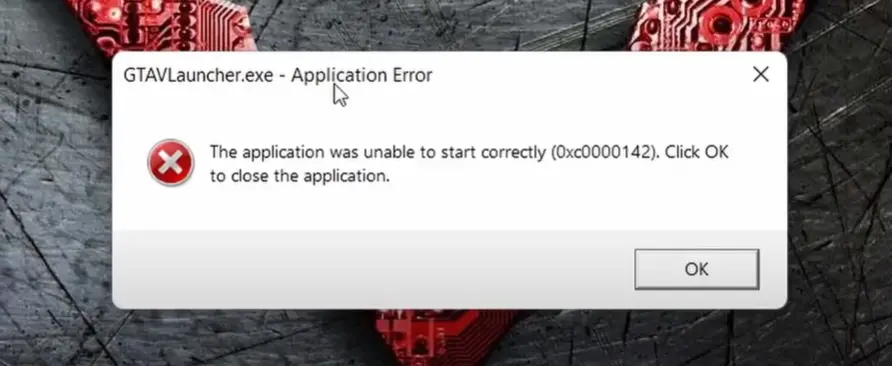
Table of Contents
What’s Behind the Error Code?
First off, let’s unravel the mystery behind this cryptic error. In simple terms, the “0x0000142” message means the game failed to launch correctly. And more often than not, the culprits are corrupted or missing files that are critical for running the game. Files like “steam_api64.dll,” “socialclub.dll,” “GTAVLauncher.exe,” and “GTA5.exe” sometimes decide to act up, leading to this headache. But fret not! There are proven methods to resolve the issue.
Let’s dive into some solutions.
1. Verify Game Files
Think of this as giving your game files a routine health check. Platforms like Steam and Epic Games have built-in tools to check the integrity of your files, detect any corrupt ones, and replace them automatically.
Steps for Steam:
- Open your Steam client.
- Navigate to your library and find GTA V.
- Right-click on the game, select Properties, and go to the Local Files tab.
- Click on Verify Integrity of Game Files and let the process complete.
This scan will fix any broken or missing files, giving your game a fresh start.
2. Update Your Graphics Drivers
Outdated or incompatible graphics drivers are among the most common causes of behind-startup errors. To ensure optimal performance, ensure your GPU drivers are current.
Here’s how to update your drivers:
- For NVIDIA users, head over to NVIDIA’s official site.
- For AMD users, visit AMD’s support page.
- Download and install the latest drivers for your graphics card.
Pro Tip: Use tools like GeForce Experience (NVIDIA) or Radeon Software (AMD) to automate driver updates.
3. Temporarily Disable Antivirus and Firewall
Sometimes, your antivirus or firewall might overreact and block critical game files from running, mistaking them for potential threats.
To temporarily disable your antivirus:
- Open your antivirus program.
- Turn off real-time protection or add an exception for GTA V.
For Windows Firewall:
- Go to Control Panel > System and Security > Windows Defender Firewall.
- Select Allow an app or feature through Windows Defender Firewall and add GTA V to the list.
Don’t forget to re-enable your antivirus and firewall once you’ve resolved the issue.
4. Run GTA V as Administrator
Giving the game administrative privileges can sometimes bypass permissions-related issues that prevent it from launching.
Steps to run as administrator:
- Navigate to your GTA V installation folder.
- Right-click on “GTA5.exe” or “GTAVLauncher.exe” and select Properties.
- Go to the Compatibility tab.
- Check the box that says Run this program as an administrator.
- Click Apply and OK.
Now, try relaunching the game.
5. Try Compatibility Mode
If you’re running the game on a newer operating system, compatibility mode can help bridge the gap between older software and modern hardware.
Here’s what to do:
- Right-click on “GTA5.exe” or “GTAVLauncher.exe.”
- Select Properties and go to the Compatibility tab.
- Check Run this program in compatibility mode for: and choose an earlier version of Windows (e.g., Windows 8 or 7).
- Apply the changes and restart the game.
6. Reinstall the Game
If all else fails, a fresh installation might be your best bet. Uninstall the game, clean up residual files, and then reinstall it. This ensures that you’re starting with a clean slate.
Don’t forget:
- Back up your save files before uninstalling the game. You can usually find them in the Documents > Rockstar Games > GTA V folder.
7. Seek Expert Help
If the issue persists, don’t hesitate to reach out for additional support. Rockstar Games’ official support site is a great place to start. You can also check out gaming forums and communities—you’re not alone in this, and many fellow gamers are happy to share their solutions.
Bonus Tip: Check Out Video Guides
Sometimes, a step-by-step video tutorial can make troubleshooting much easier. Look up reputable gaming channels on YouTube for detailed guides tailored to fixing the “0x0000142” error in GTA V.
Frequently Asked Questions (FAQ)
Q. What does the error code 0x0000142 mean in GTA V?
This error means that the game failed to initialize properly. It’s usually caused by corrupted or missing game files, outdated drivers, or antivirus/firewall software interference.
Q. Is error 0x0000142 only related to GTA V?
No. This is a Windows application startup error that can appear in other games or apps like Microsoft Office or Call of Duty. However, the root causes are usually the same: system file issues, compatibility problems, or software conflicts.
Q. Can I fix the 0x0000142 error without reinstalling GTA V?
Yes! In most cases, verifying game files, updating your drivers, and disabling antivirus/firewall temporarily will resolve the issue. Reinstalling the game should only be your last resort.
Q. Does running GTA V as an administrator help?
Yes, especially if the error is caused by permission restrictions. Running the game with admin rights allows it to access necessary system resources that might otherwise be blocked.
Q. How do I know if my antivirus is blocking GTA V?
If your game fails to launch right after an antivirus update or installation, it’s likely being blocked. Temporarily disable your antivirus or add exceptions for GTA5.exe and GTAVLauncher.exe to see if it resolves the issue.
Wrapping Up – The Application Was Unable to Start Correctly 0x0000142
Dealing with the “The application was unable to start correctly (0x0000142)” error can be a pain, but with these tips, you’ll be back to wreaking havoc in Los Santos in no time. Whether it’s verifying game files, updating drivers, or simply running the game as an administrator, there’s always a solution to get things running smoothly again.
So, grab a snack, roll up your sleeves, and tackle this issue like the pro gamer you are. Happy gaming!
Check out Our Best Smartphones in India 2025 for All Budgets – Full List (₹15,000 to ₹1,00,000)
Latest Post :
- Samsung S26 Ultra vs iPhone 17 Pro Max: 5 Reasons Samsung Wins in 2026
- Samsung Galaxy S26 Ultra Privacy Display First Look Review: Real-World Pros, Cons, Price Hike & What’s Actually New
- Best Camera Phone Under 15000 to 50000 in India (2026 February Buyer’s Guide)
- Vivo X300 vs Vivo X200T Detailed Comparison for Gaming, Camera & Battery in India
- Vivo X200T Detailed Performance and Camera Review in India – Worth?