Last Updated - June 15, 2025 07:53 am IST | Dhiraj Singh
Windows updates are essential for keeping your system secure, stable, and up-to-date with the latest features. However, they don’t always install smoothly. One of the most common errors users encounter is the dreaded Windows Update Error 0x80070057. This error can appear for various reasons, from corrupted system files to misconfigured settings. If you’ve run into this issue, don’t worry—this guide will walk you through multiple solutions to fix it step by step.
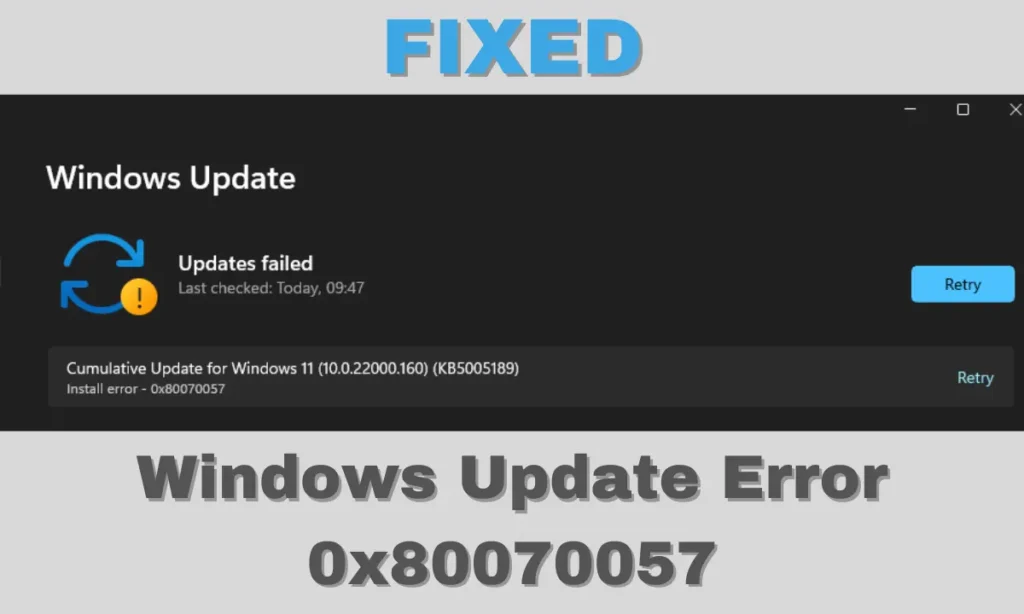
Table of Contents
What Causes Windows Update Error 0x80070057?
Before we jump into the fixes, let’s first understand the possible causes of this error:
- Corrupt Windows Update Components – Damaged or incomplete Windows update files can trigger this error.
- Incorrect Registry Configuration – A misconfigured registry setting may prevent Windows from updating properly.
- Storage Space Issues – If your system drive (C:) is running out of space, updates may fail.
- Third-Party Software Conflicts – Certain antivirus programs or other third-party software can interfere with the update process.
- Damaged System Files – Corrupt system files can prevent Windows Update from functioning correctly.
- Network Issues – Poor internet connectivity or misconfigured network settings can disrupt the update process.
Now that we know the causes, let’s go through different methods to fix this error.
Method 1: Run Windows Update Troubleshooter
Microsoft provides a built-in troubleshooter designed to detect and fix update-related issues automatically. Here’s how to use it:
- Press Windows + I to open Settings.
- Go to System > Troubleshoot > Other troubleshooters.
- Find Windows Update and click Run.
- Follow the on-screen instructions and let Windows attempt to fix the issue.
- Restart your computer and try running the update again.
If the troubleshooter detects and resolves any problems, your issue may be fixed.
Method 2: Clear the Windows Update Cache (SoftwareDistribution Folder)
Sometimes, update files stored in the SoftwareDistribution folder can become corrupted, causing the 0x80070057 error. Clearing this folder can resolve the issue.
- Press Windows + R, type
services.msc, and press Enter. - Scroll down and find Windows Update.
- Right-click on it and select Stop.
- Open File Explorer and navigate to:
C:\Windows\SoftwareDistribution - Delete all files and folders inside SoftwareDistribution.
- Go back to the Services window, right-click Windows Update, and select Start.
- Restart your computer and try updating Windows again.
Method 3: Run the System File Checker (SFC) and DISM Commands
Corrupt system files may also cause update failures. Running SFC (System File Checker) and DISM (Deployment Imaging Service and Management Tool) can repair these files.
Run SFC Scan:
- Open Command Prompt as Administrator (search cmd, right-click, and select Run as administrator).
- Type the following command and press Enter:
sfc /scannow - Wait for the scan to complete. If any issues are found, Windows will attempt to fix them.
- Restart your PC and try updating again.
Run DISM Commands:
If the SFC scan didn’t fix the issue, try running the DISM tool.
- Open Command Prompt as Administrator.
- Run the following commands one by one:
DISM /Online /Cleanup-Image /CheckHealth DISM /Online /Cleanup-Image /ScanHealth DISM /Online /Cleanup-Image /RestoreHealth - Restart your PC after the process completes and check for updates again.
Method 4: Free Up Disk Space
If your system drive is running low on space, Windows updates may fail. Follow these steps to free up space:
- Open Settings > Storage.
- Click Temporary files and select unnecessary files to delete.
- Use the Disk Cleanup tool:
- Press Windows + R, type
cleanmgr, and press Enter. - Select C: drive and click OK.
- Check the files you want to remove and click Clean up system files.
- Press Windows + R, type
- Restart your PC and try updating Windows again.
Method 5: Temporarily Disable Antivirus and Firewall
Some third-party antivirus programs may block Windows updates. Try disabling your antivirus temporarily:
- Open your antivirus program and look for the Disable or Turn off option.
- Also, disable Windows Defender Firewall:
- Open Control Panel > Windows Defender Firewall.
- Click Turn Windows Defender Firewall on or off.
- Select Turn off Windows Defender Firewall (both private and public networks).
- Attempt to run Windows Update again.
- Re-enable your antivirus and firewall after the update completes.
Method 6: Reset Windows Update Components
If nothing works, resetting Windows Update components can help.
- Open Command Prompt as Administrator.
- Run the following commands one by one:
net stop wuauserv net stop cryptSvc net stop bits net stop msiserver ren C:\Windows\SoftwareDistribution SoftwareDistribution.old ren C:\Windows\System32\catroot2 Catroot2.old net start wuauserv net start cryptSvc net start bits net start msiserver - Restart your PC and try updating Windows again.
Method 7: Manually Download and Install the Update
If an update keeps failing, try installing it manually:
- Go to Microsoft Update Catalog (https://www.catalog.update.microsoft.com).
- Search for the update using its KB number (you can find it in Windows Update error logs).
- Download the correct version for your system (x64 for 64-bit, x86 for 32-bit).
- Run the downloaded file and follow the installation instructions.
- Restart your PC.
Final Thoughts
The Windows Update Error 0x80070057 can be frustrating, but with patience and the right troubleshooting steps, you can resolve it. Start with the built-in troubleshooter and gradually move to more advanced solutions like resetting update components or running system scans. If all else fails, consider manually installing the update or resetting your PC as a last resort.
Have you encountered this error before? Which method worked for you? Let us know in the comments!