The world of personal computers has changed a lot. Windows 11 has changed from a simple operating system into a fully integrated AI powerhouse as we move into 2026. Whether you are building a new gaming rig or reviving an older laptop, knowing the proper Windows 11 installation setup guide step by step without product key is essential for a clean, high-performance experience.
In this guide, we’ll walk through the entire process—from creating bootable media to navigating the new AI-ready setup screens—all while using official Microsoft methods to keep your system secure and legal.
Table of Contents
Why a Clean Install is Better in 2026
While “Reset this PC” is an option, a clean installation from a USB drive removes manufacturer bloatware and resolves deep-seated registry errors. With the latest 2026 updates (including the full rollout of the 252-series features), Windows 11 now requires specific handling of Microsoft accounts and internet connectivity.
⚠️ Pre-Installation Warning: This process involves formatting your system drive. Back up your files now. Whether it’s cloud storage or an external hard drive, ensure your photos and documents are safe. Proceeding without a backup puts your data at risk.
Phase 1: Hardware Requirements & Preparation
Before we dive into the software, let’s ensure you have the physical tools ready. To follow this Windows 11 installation setup guide step by step without product key, you will need:
- A Reliable Internet Connection: You’ll be downloading roughly 6GB to 8GB of data.
- USB Flash Drive: Minimum 8GB capacity. Note that the drive will be completely erased.
- System Compatibility: Ensure your PC supports TPM 2.0 and Secure Boot (standard on most machines built after 2019).
Phase 2: Creating Your Official Bootable Media
We aren’t using “cracked” versions or third-party ISOs. We are going straight to the source.
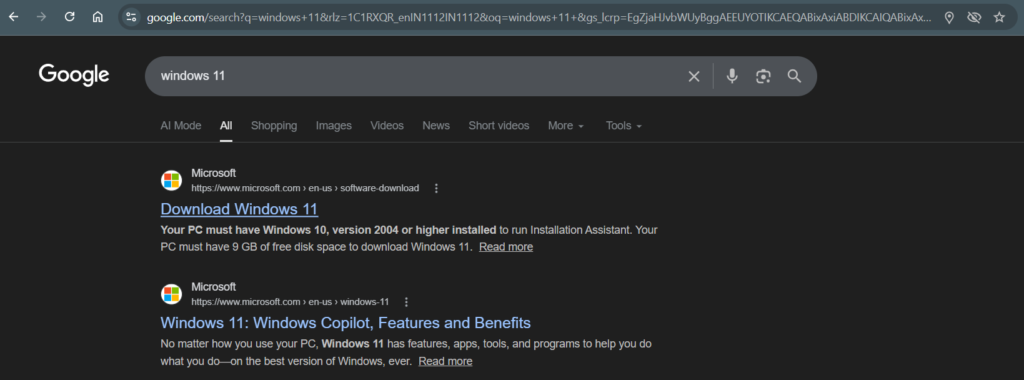
- Visit Microsoft.com: Search for “Download Windows 11.” Ensure the URL is an official Microsoft domain.
- Download the Media Creation Tool: Look for the section labeled “Create Windows 11 Installation Media.” This is a small executable file that handles the heavy lifting.
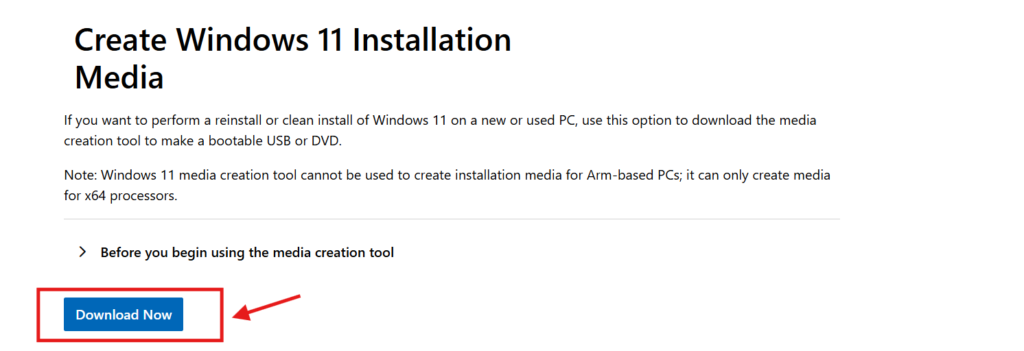
- Run the Tool: * Accept the License Terms.
- Select “Use the recommended options for this PC” (unless you are preparing the USB for a different computer).
- Choose USB flash drive when prompted.
- The Download Phase: The tool will download the latest 2026 build and flash it onto your drive. Depending on your connection, this usually takes 10–20 minutes.
Phase 3: Booting from the USB
Now that your “Key to Windows” is ready, it’s time to tell your computer to load from the USB instead of the internal hard drive.
- Insert the USB into the target PC and restart it.
- Access the Boot Menu: As the screen lights up, repeatedly tap the Boot Menu Key.
- Common keys: F12 (Dell/Gigabyte), F11 (MSI), F9 (HP), or Esc (ASUS).
- Select UEFI Boot: Choose your USB drive from the list. Ensure you select the version with “UEFI” in the name for the best security and performance.
Phase 4: The Core Installation Steps
Once the Windows logo appears, you are in the installer environment. Follow these steps carefully:
1. Language and Region
Select your preferred language, time format, and keyboard method (e.g., English India or US). Click Next > Install Now.
2. The Product Key Bypass
This is where many users get stuck. When the screen asks for a product key:
- Look at the bottom of the window and click “I don’t have a product key.”
- Windows will allow you to proceed. You can activate it later in the settings, but for now, the OS will remain fully functional.
3. Choosing Your Edition
Select Windows 11 Pro. Even without a key, the Pro version offers superior networking and security features that are standard for 2026 users.
4. Custom Installation (The Clean Way)
When asked “Which type of installation do you want?”, select Custom: Install Windows only (advanced).
- You will see a list of partitions.
- If you want a truly clean start, delete all partitions on Drive 0 until it says “Unallocated Space.”
- Select that space and click Next.
Phase 5: The “Out of Box” Experience (OOBE)
After the files copy and the PC restarts, you’ll enter the personalization phase.
- Region & Keyboard: Confirm your location.
- The Internet Requirement: In 2026, Windows 11 strictly requires an internet connection for the initial setup. Connect to your Wi-Fi.
- Microsoft Account: Sign in with your Outlook or Hotmail account. This links your digital license and AI preferences to the cloud.
- Privacy Settings: I recommend turning off “Diagnostic Data” and “Tailored Experiences” if you prefer a leaner, more private system.
Free vs Paid
1. The Unactivated Version (The “Trial” Experience)
This is what you get immediately after following my installation guide.
- The Experience: You have 100% of the power. Your games will run at the same FPS as a paid version, and you’ll still get every security update.
- The Catch: You’ll see a faint “Activate Windows” watermark in the bottom right corner. Also, the Personalization menu is locked—meaning you can’t officially change your wallpaper, accent colors, or dark mode settings through the Windows menu (though you can still right-click any image and “Set as Desktop Background”).
- Verdict: Perfect for students, home lab testers, or anyone building a PC who wants to save their budget for better hardware like an SSD or more RAM.
2. Windows 11 Home (The Standard Consumer Choice)
This is the version pre-installed on 90% of laptops found in stores.
- What You Get: All the restrictions of the unactivated version are removed. You get full customization, no watermarks, and a digital license linked to your Microsoft account.
- Limitations: It lacks “BitLocker” (advanced drive encryption) and “Remote Desktop Host.” If you lose your laptop, your data is harder to protect compared to the Pro version.
- Verdict: The best choice for casual users, gamers, and students who want a “set it and forget it” experience without the watermark.
3. Windows 11 Pro (The Power User & Business Choice)
This version is designed for professionals and those who handle sensitive data.
- BitLocker Drive Encryption: If someone steals your laptop and tries to pull out the SSD to read your files, they’ll find nothing but scrambled code. This is a massive “must-have” for bloggers and business owners.
- Remote Desktop: You can log into your home PC from a tablet or phone while you’re at a coffee shop and use it as if you’re sitting at your desk.
- Hyper-V & Sandbox: Built-in tools for tech enthusiasts to run “virtual” computers. If you want to test a suspicious file without risking your main system, you can open it in the Windows Sandbox, and it disappears entirely when you close the window.
- Verdict: Essential for bloggers, remote workers, and anyone who wants the highest level of security and system control.
Comparison Table: At a Glance
| Feature | Unactivated | Windows 11 Home | Windows 11 Pro |
| Price (Approx.) | 0 | Around Rs.12000/- | Around Rs. 12000/- |
| Watermark | Yes | No | No |
| Personalization | Blocked | Fully Unlocked | Fully Unlocked |
| Gaming Performance | 100% | 100% | 100% |
| BitLocker Security | No | No | Yes |
| Remote Desktop | Client Only | Client Only | Full Host Support |
| Virtualization | No | No | Hyper-V & Sandbox |
Summary of the Windows 11 Installation Setup Guide Step by Step Without Product Key
Installing Windows 11 in 2026 is faster than ever. By using the official Media Creation Tool and selecting “I don’t have a product key,” you get a high-performance, secure operating system without an upfront cost. While you’ll miss out on some cosmetic customization, the core “AI-Ready” experience remains untouched.